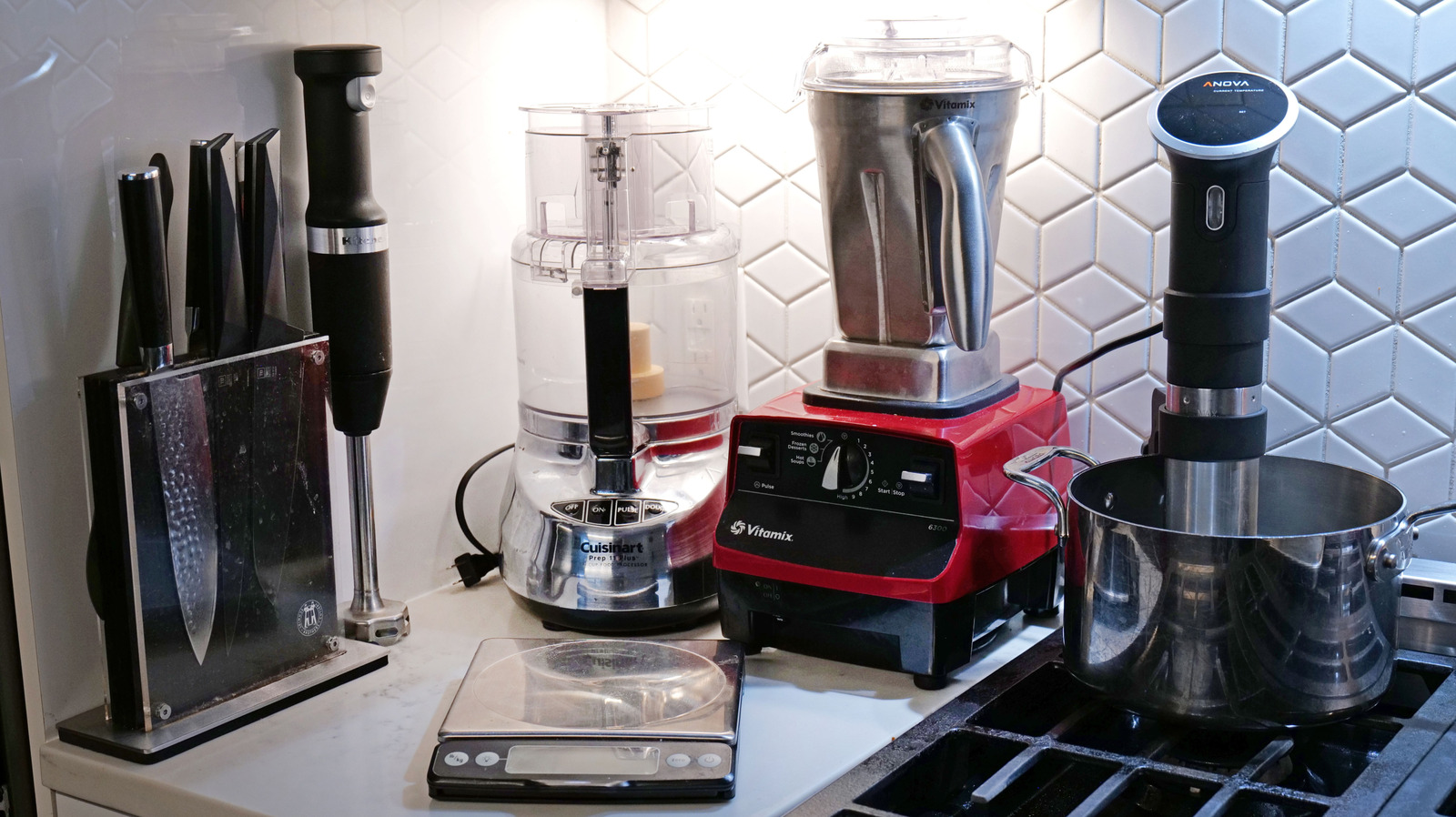
 7 gadgets that'll instantly upgrade your Thanksgiving feast
 Capcom's quirky dinosaur-fighting hero shooter is shutting down in 2027
 Trump admin didn't investigate Jensen Huang before pushing Nvidia to bring him back: 'What does that mean, had Huang been investigated? For what?'
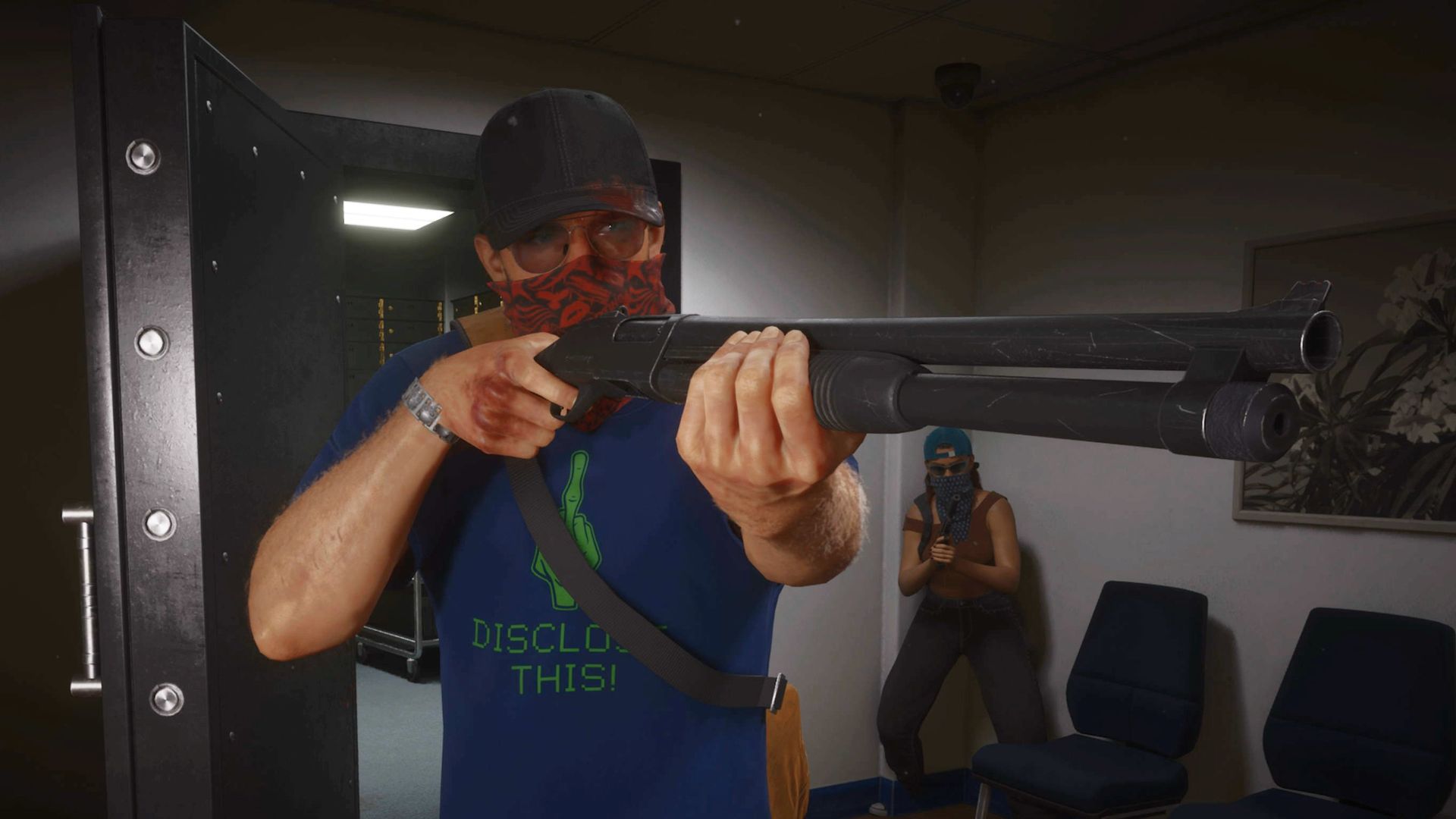 GTA 6 vault: How to open them during big bank jobs
 Deceased BBC football commentator resurrected with AI for EA Sports FC: The family says it's a 'touching tribute' but some fans call it 'gross' and 'bleak'
 State AGs are trying to stop Character.AI from auctioning off users' chat histories
 As the US Treasury suffers a cybersecurity breach, its chief tech guy is vibecoding a Civilization clone
 AI kills another coding competition: 'I was not at all interested in giving awards to the output of large language models'
 How to steal the Pegassi Infernus in GTA 6
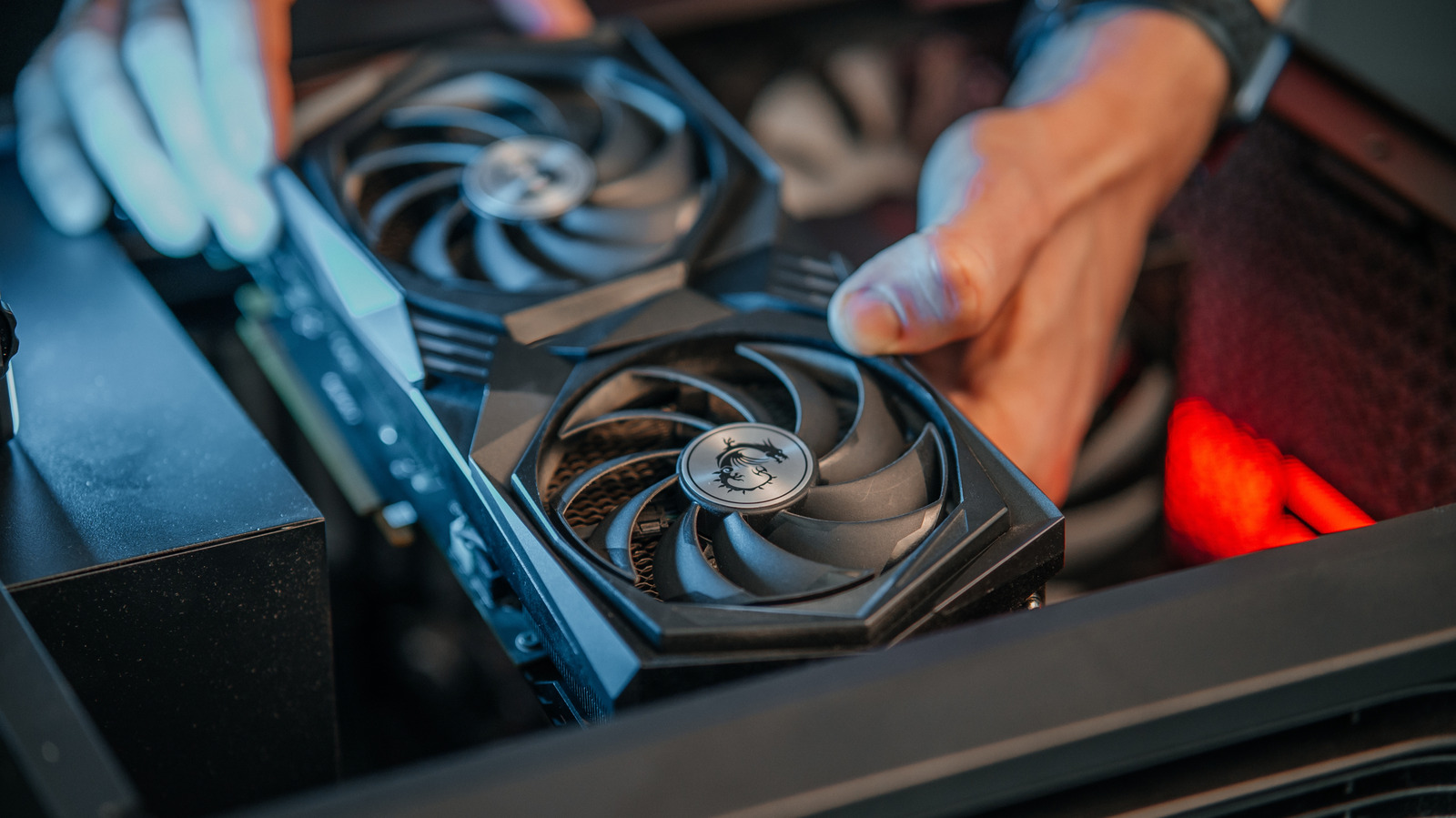
Your PC's Device Manager is exactly where you need to look for your GPU's name without any graphs involved. To begin, right-click the Start button, select Device Manager from the list and expand Display adapters. You'll find all the graphics devices listed by Windows and also see whether your PC has both integrated and dedicated GPUs. Once you find the GPU you want, double-click on it and open the Driver tab to check the installed driver version and date.
There's also the option to use the DirectX Diagnostic Tool. Press Windows + R, type dxdiag and hit Enter. The Display tab will give you details about the GPU and drivers installed, and the System tab shows the DirectX version installed on your system.
If you see Microsoft Basic Display Adapter instead of your graphics card's name in Device Manager, it means Windows is using a generic display driver. While that doesn't always point to hardware issues, you may want to update your GPU drivers before getting deeper into troubleshooting.
You can also use third-party apps like HWiNFO to track GPU temperatures, clock speeds and power readings, just as you would when checking CPU temperatures.