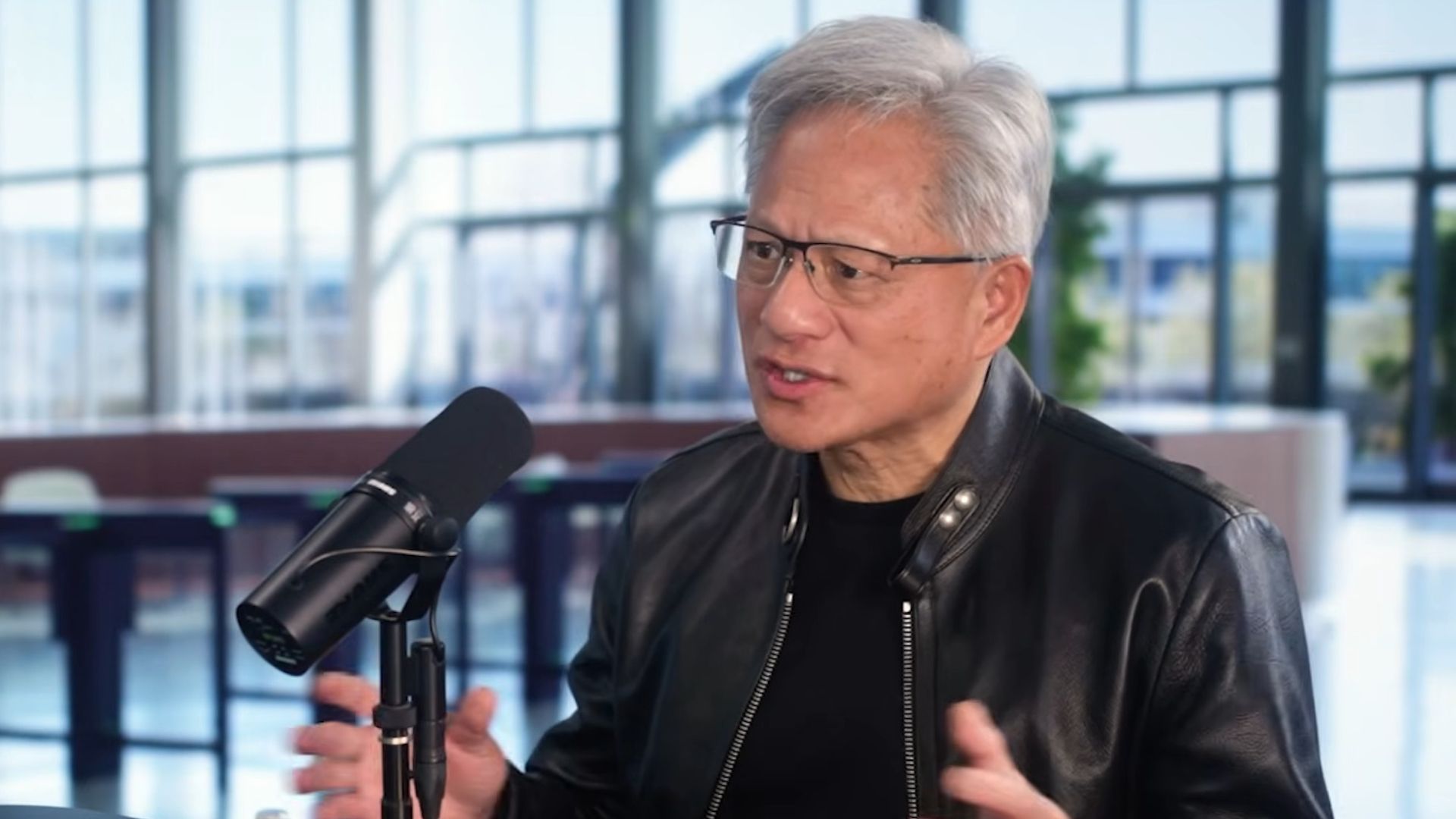
 Trump admin didn't investigate Jensen Huang before pushing Nvidia to bring him back: 'What does that mean, had Huang been investigated? For what?'
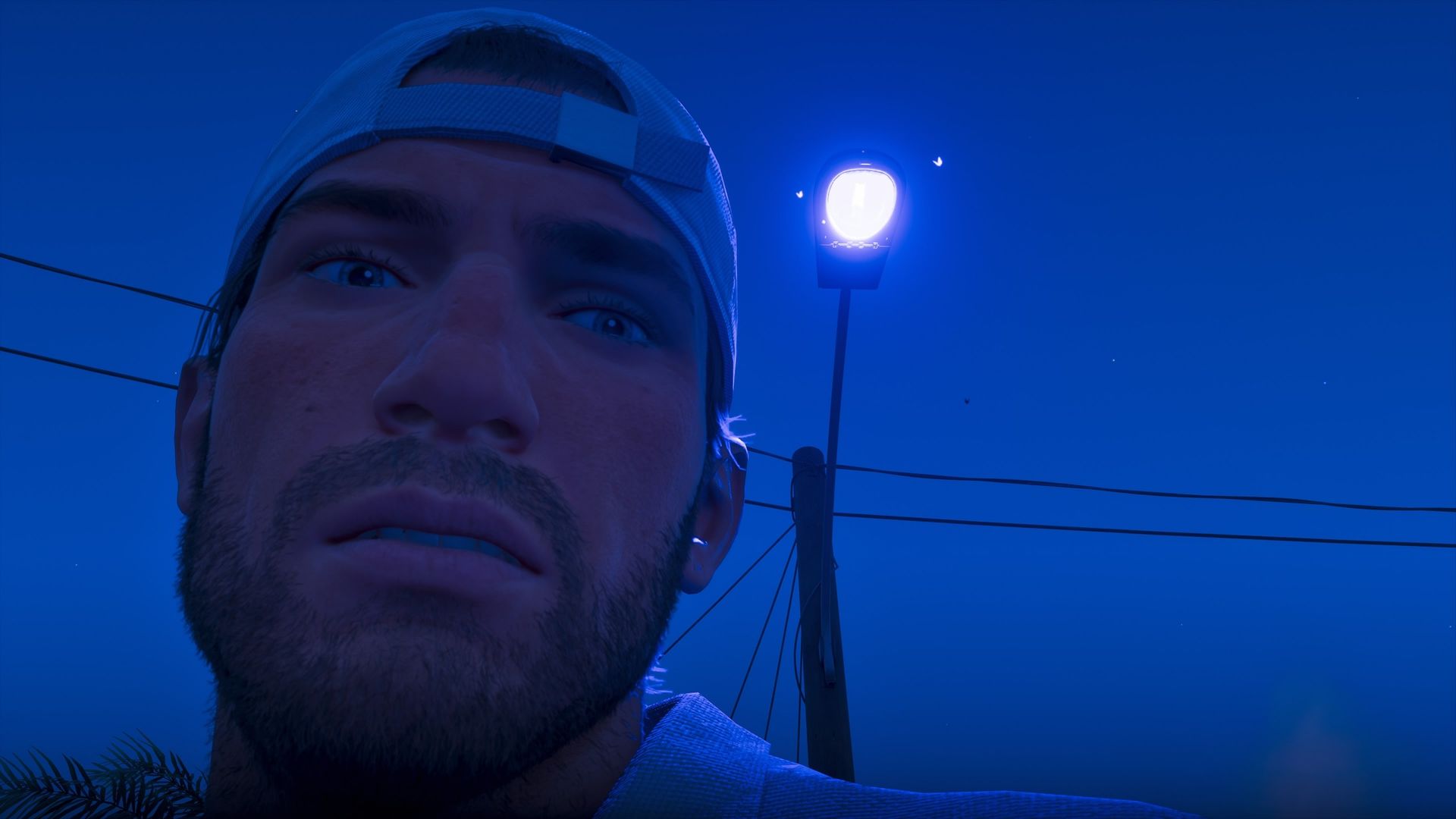
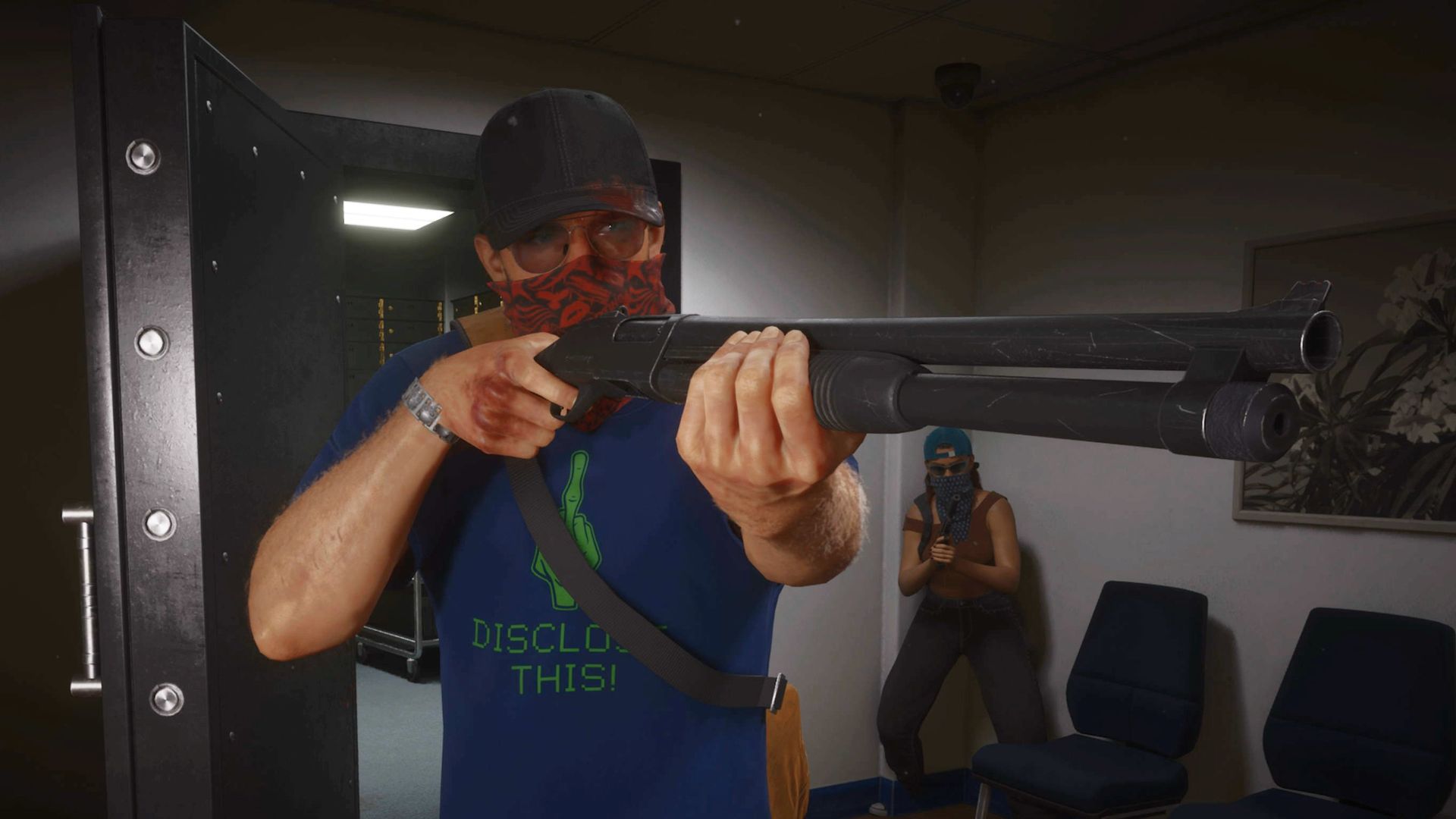 GTA 6 vault: How to open them during big bank jobs
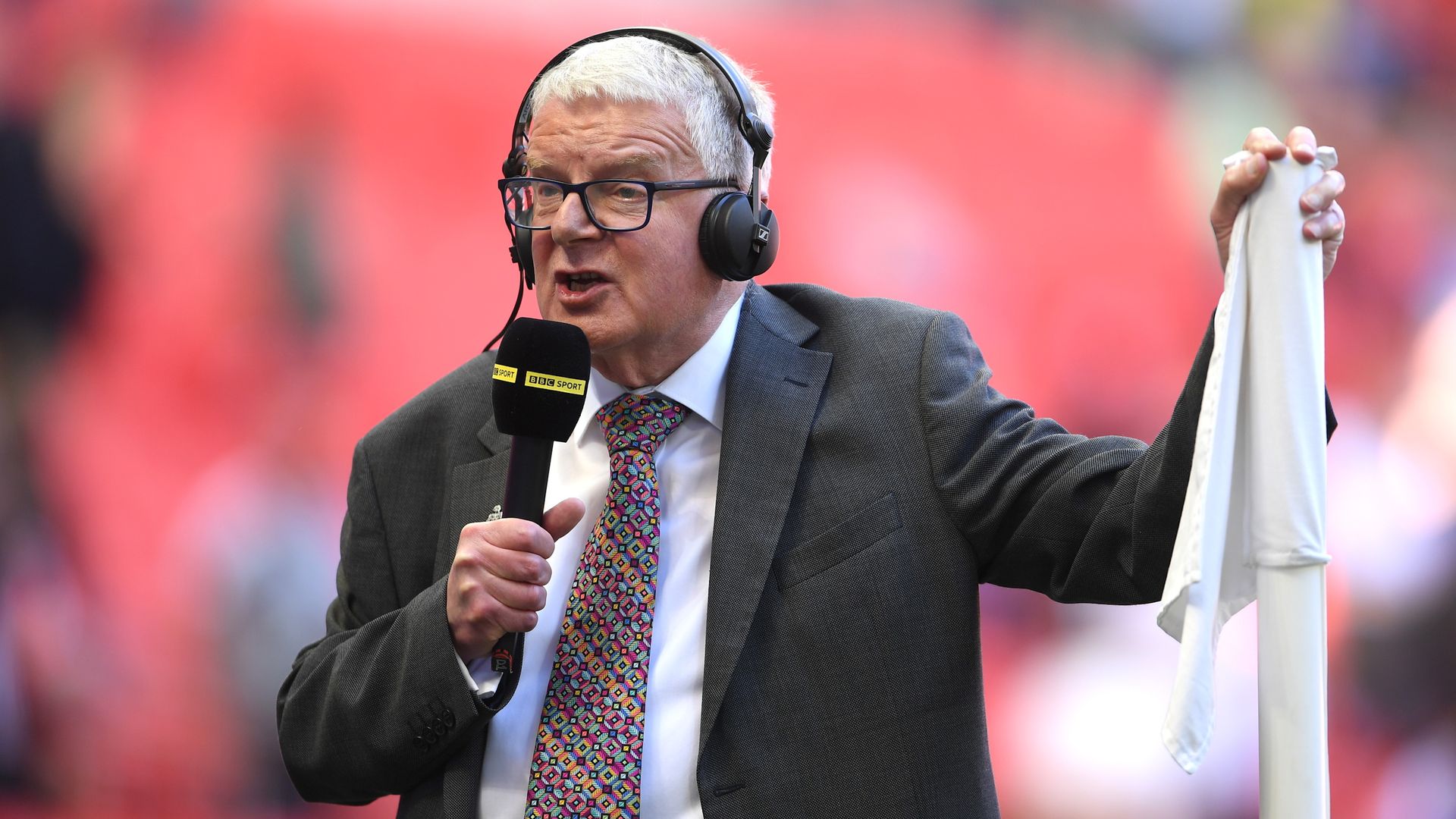 Deceased BBC football commentator resurrected with AI for EA Sports FC: The family says it's a 'touching tribute' but some fans call it 'gross' and 'bleak'
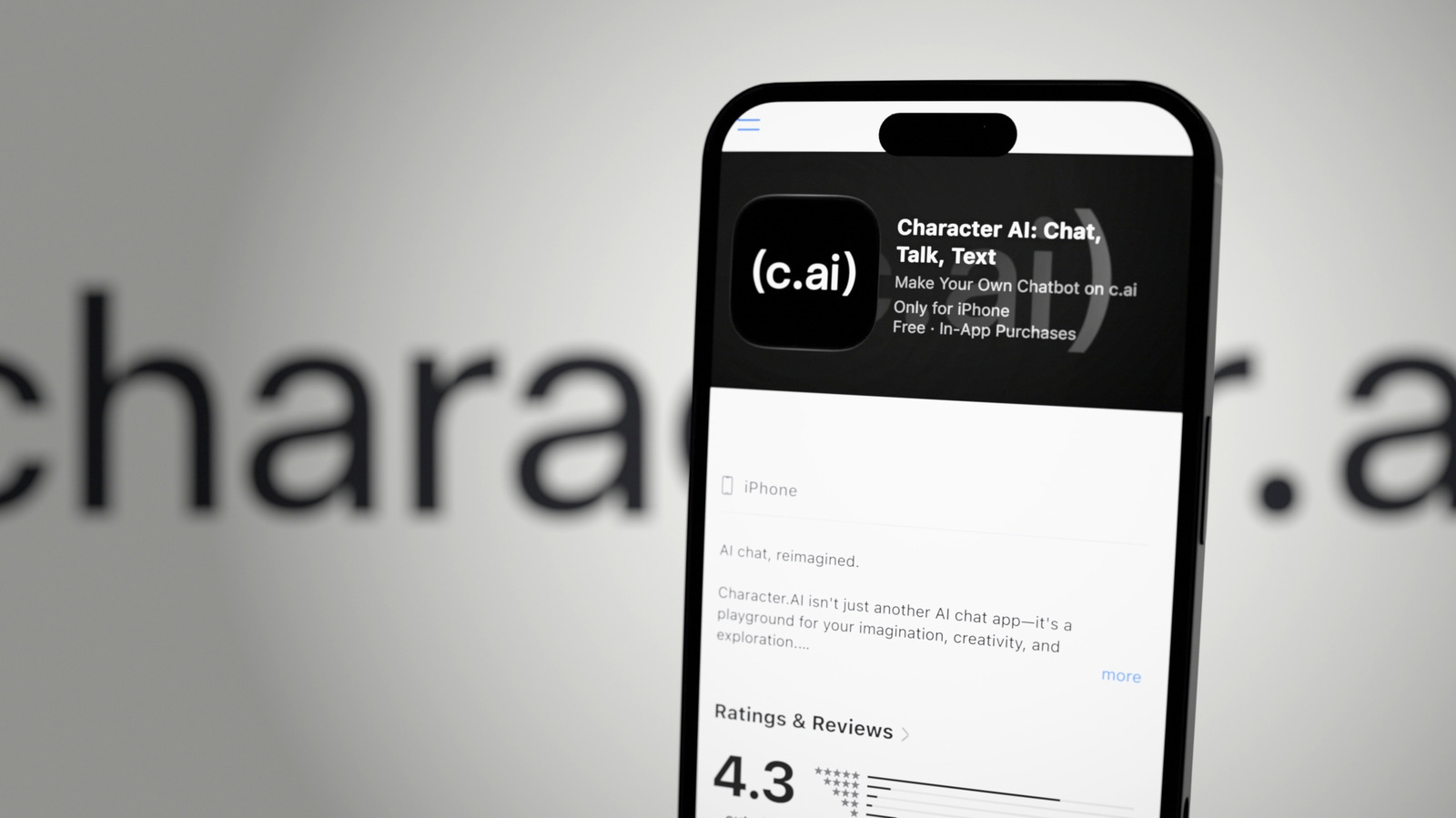 State AGs are trying to stop Character.AI from auctioning off users' chat histories
 As the US Treasury suffers a cybersecurity breach, its chief tech guy is vibecoding a Civilization clone
 AI kills another coding competition: 'I was not at all interested in giving awards to the output of large language models'
 How to steal the Pegassi Infernus in GTA 6
 How to steal an ATM and get a winched vehicle in GTA 6
 Even Max Verstappen has succumbed to GTA 6 fever, squeezing in 40 hours around his Las Vegas Grand Prix win
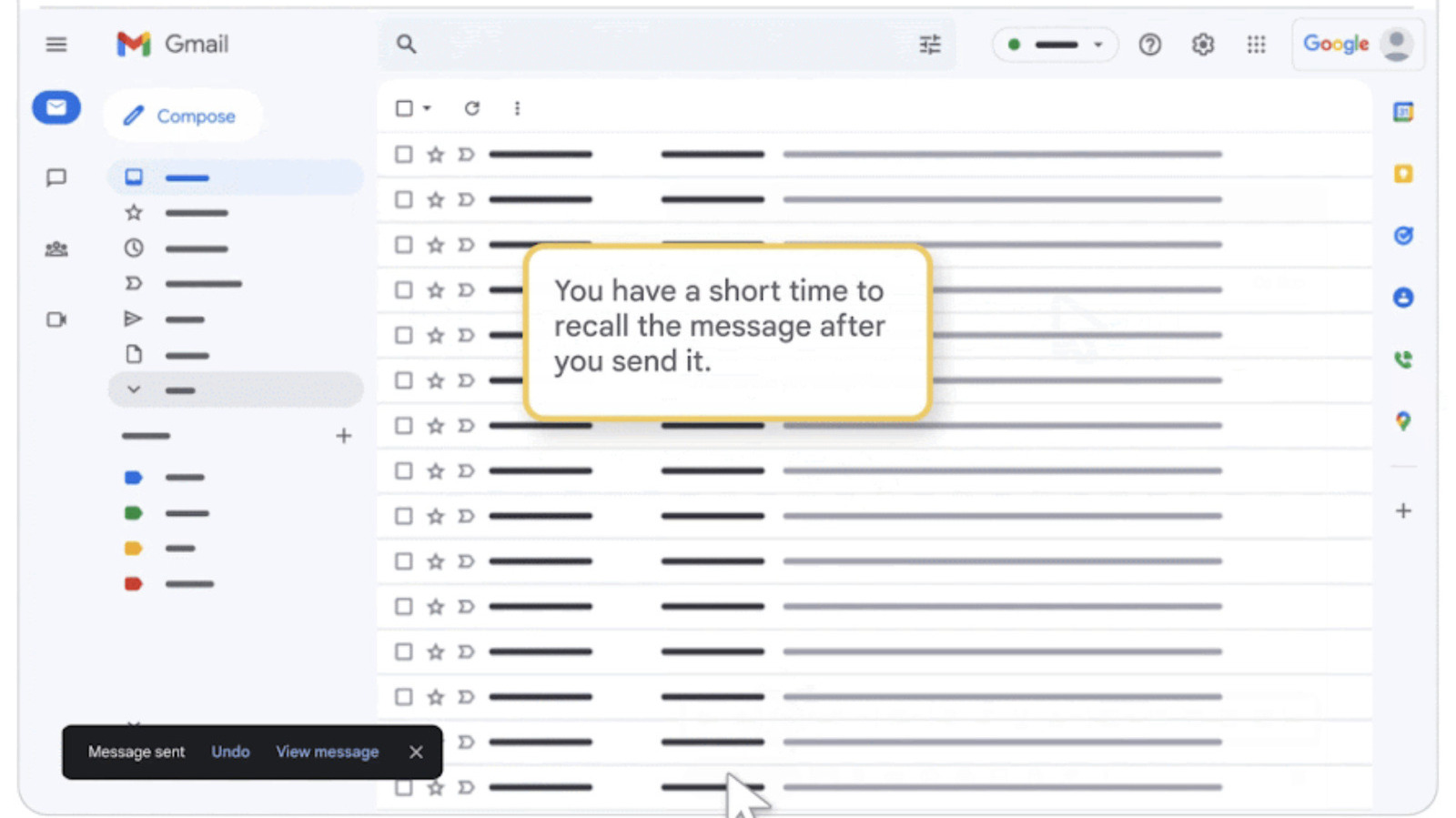
The good news is that you can lengthen the amount of time you have to hit Undo, so you can give your messages a quick final read before Gmail pushes them through. You'll have to manage your expectations, though: Even if you choose the longest amount of time available, it's still pretty short. And no, you still can't take back emails that have already landed in your recipient's inbox.
To choose and extend the amount of time you have to unsend a message, go to Gmail on desktop and click or tap on the Gear icon at the top right corner of the screen. In the Quick settings panel, choose See all settings. In the General settings page, scroll down until you see the Undo Send section, where you'll find the option to change your cancellation period.
It will be set to the feature's default of five seconds, but you can change it to 10, 20 or 30 seconds. That half-a-minute period is the longest you can delay your email's dispatch, but it could be long enough to prevent disaster when sending out especially important messages. Don't forget to hit Save changes at the bottom of the General settings page for the new cancellation period to take effect.